PowerShell Commands Every SOC Analyst Needs to Know
Essential PowerShell commands for SOC analysts. Covers log analysis, process investigation, network triage, file hashing, registry checks, and incident response one-liners.
EpicDetect Team
15 min read
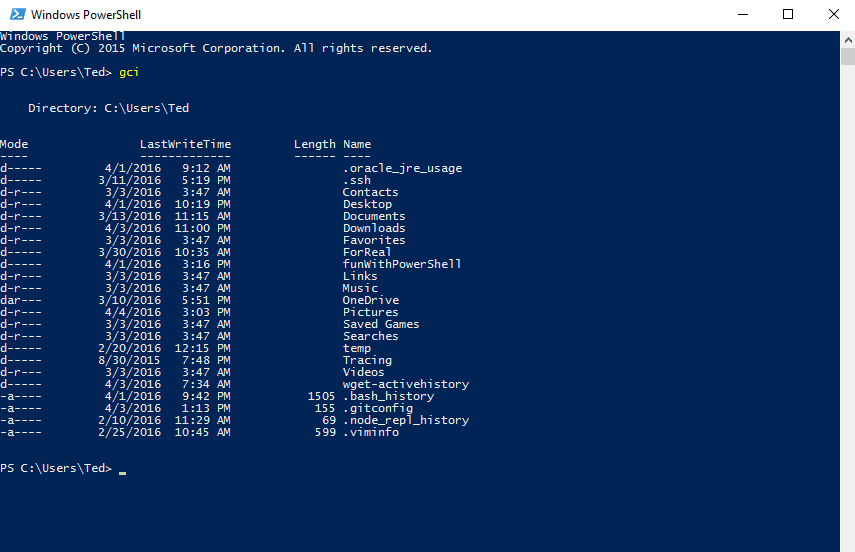
PowerShell Commands Every SOC Analyst Needs to Know
You get an alert. Possible compromise on a workstation. You RDP in (or hop on a remote session) and now you're staring at a PowerShell terminal thinking—what do I actually run?
Here's the thing—you don't need to be a PowerShell wizard. You need about 20 commands that cover 90% of what you'll do during triage, investigation, and response.
This is your cheat sheet. Bookmark it.
Why PowerShell for SOC Work?
PowerShell is already on every Windows machine. You don't need to install anything. You don't need admin approval to download a tool. It's just there, ready to go.
For SOC analysts, PowerShell lets you:
- Pull event logs without opening Event Viewer
- Check running processes and their network connections
- Hunt for persistence mechanisms
- Hash files for IOC matching
- Triage an endpoint in minutes instead of hours
Let's get into the commands.
Log Analysis (Your Bread and Butter)
If you're a SOC analyst, you're reading logs. A lot of them. These commands let you pull and filter Windows Event Logs without touching Event Viewer. If you're newer to log analysis, this guide covers what to actually look for when reviewing security events.
Get-WinEvent — The One You'll Use Most
Pull Security events by Event ID:
Get-WinEvent -FilterHashtable @{LogName='Security'; ID=4625} -MaxEvents 50
This grabs the last 50 failed logon attempts. Change the ID to 4624 for successful logons, 4720 for account creation, 1102 for cleared logs—whatever you're hunting for. Not sure which IDs matter most? Here's a full breakdown of the Windows Event IDs every SOC analyst should know.
Filter by Time Range
Only want events from the last 24 hours?
$start = (Get-Date).AddHours(-24)
Get-WinEvent -FilterHashtable @{LogName='Security'; ID=4625; StartTime=$start}
This is huge during incident response. You don't want every failed logon since the machine was built—you want the ones from the attack window.
Search Event Messages for Keywords
Looking for a specific username in logon events?
Get-WinEvent -FilterHashtable @{LogName='Security'; ID=4624} -MaxEvents 200 | Where-Object {$_.Message -like "adminuser"}
Swap out adminuser for whatever you're hunting—IP addresses, hostnames, service accounts.
Pull PowerShell Script Block Logs
Want to see what PowerShell scripts ran on this machine?
Get-WinEvent -FilterHashtable @{LogName='Microsoft-Windows-PowerShell/Operational'; ID=4104} -MaxEvents 20 | Select-Object TimeCreated, Message
Event 4104 captures the full script text after deobfuscation. If an attacker ran encoded PowerShell, you see the decoded version here. This is gold.
Process Investigation (What's Running Right Now?)
When you're on a potentially compromised endpoint, the first thing you want to know is: what's running?
Get-Process — Quick Snapshot
Get-Process | Sort-Object CPU -Descending | Select-Object -First 20 Name, Id, CPU, Path
This gives you the top 20 processes by CPU usage with their file paths. If something's running from C:\Users\Public or C:\Temp—that's suspicious.
Find Processes by Name
Looking for a specific process?
Get-Process -Name powershell, cmd, wscript, cscript, mshta -ErrorAction SilentlyContinue
This checks for common LOLBins (Living Off the Land Binaries) that attackers use. If mshta.exe is running on an accounting workstation, you probably want to investigate that.
Get the Full Command Line
This is the big one. Get-Process doesn't show command-line arguments by default. You need WMI for that:
Get-CimInstance Win32_Process | Select-Object ProcessId, Name, CommandLine | Format-List
Now you can see not just what's running, but how it was launched. powershell.exe -enc SQBFAFgA...? That encoded string is your clue.
Check Parent-Child Process Relationships
Get-CimInstance Win32_Process | Select-Object ProcessId, ParentProcessId, Name, CommandLine | Sort-Object ParentProcessId
Why does this matter? Because excel.exe spawning cmd.exe which spawns powershell.exe is a textbook attack chain. Normal users don't do that.
Network Investigation (Who's This Machine Talking To?)
An endpoint reaching out to a C2 server? Beaconing to a suspicious IP? These commands show you.
Get-NetTCPConnection — Active Connections
Get-NetTCPConnection -State Established | Select-Object LocalAddress, LocalPort, RemoteAddress, RemotePort, OwningProcess | Sort-Object RemoteAddress
This shows every active TCP connection on the machine. The OwningProcess column gives you the PID—match it against your process list to see which program is making the connection.
Map Connections to Process Names
Get-NetTCPConnection -State Established | ForEach-Object { $proc = Get-Process -Id $_.OwningProcess -ErrorAction SilentlyContinue; [PSCustomObject]@{RemoteAddress=$_.RemoteAddress; RemotePort=$_.RemotePort; Process=$proc.Name; PID=$_.OwningProcess} }
Now you don't just see the IP—you see which process is talking to it. svchost.exe connecting to a known Microsoft IP? Normal. rundll32.exe connecting to 185.234.x.x? Not normal.
Check Listening Ports
Get-NetTCPConnection -State Listen | Select-Object LocalAddress, LocalPort, OwningProcess
If there's a service listening on a weird port that shouldn't be there—like port 4444 (Metasploit default) or 8080 on a workstation—dig deeper.
DNS Cache — Where Has This Machine Been?
Get-DnsClientCache | Select-Object Entry, Data
The DNS cache shows you what domains this machine has recently resolved. You'll see legit stuff mixed in, but if there's a DGA-looking domain (random characters, weird TLDs) or a known C2 domain in there—you've found something.
File Hashing (IOC Matching)
You found a suspicious file. Before you do anything else, hash it and check it against your threat intel.
Get-FileHash — Hash a Single File
Get-FileHash -Path "C:\Users\Public\update.exe" -Algorithm SHA256
Grab the SHA256 and throw it into VirusTotal, your SIEM, or your threat intel platform. Takes 5 seconds and tells you immediately if it's known malware.
Hash All Executables in a Suspicious Directory
Get-ChildItem -Path "C:\Users\Public" -Filter *.exe -Recurse | Get-FileHash -Algorithm SHA256
This hashes every .exe in the directory. If an attacker dropped multiple tools, you'll catch them all.
Check File Signature
Is this executable signed by a legitimate publisher?
Get-AuthenticodeSignature -FilePath "C:\Users\Public\update.exe"
If the status says NotSigned or HashMismatch—that file is either unsigned malware or has been tampered with.
Persistence Hunting (Did They Set Up Camp?)
Attackers don't just get in—they make sure they can get back in. These commands help you find their persistence mechanisms. This kind of proactive investigation overlaps with threat hunting—where instead of reacting to alerts, you go looking for evidence of compromise before tools flag it.
Check Scheduled Tasks
Get-ScheduledTask | Where-Object {$_.State -ne 'Disabled'} | Select-Object TaskName, TaskPath, State | Format-List
Look for tasks with weird names, tasks in unusual paths, or tasks that were recently created. Want the details including what the task actually runs?
Get-ScheduledTask | Where-Object {$_.State -ne 'Disabled'} | ForEach-Object { $info = $_ | Get-ScheduledTaskInfo; [PSCustomObject]@{Name=$_.TaskName; Action=$_.Actions.Execute; LastRun=$info.LastRunTime} }
Check Registry Run Keys
The classic persistence locations:
Get-ItemProperty -Path 'HKLM:\SOFTWARE\Microsoft\Windows\CurrentVersion\Run' -ErrorAction SilentlyContinue
Get-ItemProperty -Path 'HKCU:\SOFTWARE\Microsoft\Windows\CurrentVersion\Run' -ErrorAction SilentlyContinue
Anything pointing to a random .exe in a temp folder or a script in an unusual location? That's probably not supposed to be there.
Check Startup Services
Get-CimInstance Win32_Service | Where-Object {$_.StartMode -eq 'Auto' -and $_.State -eq 'Running'} | Select-Object Name, DisplayName, PathName, StartMode | Sort-Object Name
Look at the PathName column. Services running from C:\Windows\System32? Probably fine. Services running from C:\ProgramData\ or user temp folders? Investigate.
Check for Recently Created User Accounts
Get-LocalUser | Select-Object Name, Enabled, LastLogon, PasswordLastSet | Sort-Object PasswordLastSet -Descending
A new local admin account that was created at 2 AM? That's not your IT team.
Check Local Admin Group
Get-LocalGroupMember -Group "Administrators"
Know who should be in this group. If there's an account you don't recognize, that's a finding.
Quick Triage One-Liners
These are the commands you run first when you land on a machine. Quick wins that give you a fast picture.
System Info Snapshot
Get-ComputerInfo | Select-Object CsName, OsName, OsVersion, OsLastBootUpTime, CsDomain
Hostname, OS version, last reboot, domain membership—all in one shot.
Check Uptime
(Get-Date) - (Get-CimInstance Win32_OperatingSystem).LastBootUpTime
If the machine rebooted recently and nobody requested it—could be an attacker cleaning up or a kernel exploit that crashed the system.
List Recently Modified Files
Get-ChildItem -Path C:\Users -Recurse -File -ErrorAction SilentlyContinue | Where-Object {$_.LastWriteTime -gt (Get-Date).AddDays(-3)} | Sort-Object LastWriteTime -Descending | Select-Object -First 30 FullName, LastWriteTime, Length
What files changed in the last 3 days? If you see .exe files, scripts, or archives showing up in user profile directories—that's worth investigating.
Firewall Rules Check
Get-NetFirewallRule -Enabled True -Direction Inbound | Select-Object DisplayName, Action, Profile | Sort-Object DisplayName
Did someone add an inbound allow rule that shouldn't be there? Attackers sometimes open ports for reverse shells or remote access.
Pro Tips for Using PowerShell in the SOC
1. Always save your output. Pipe results to Export-Csv or Out-File during incident response. You'll want the evidence later.
2. Use -ErrorAction SilentlyContinue on commands that might hit access denied errors. Otherwise your output gets cluttered with red text and you miss the actual results.
3. Combine commands with the pipeline. PowerShell's pipeline (|) is your superpower. Get processes, filter for suspicious ones, grab their network connections, and export to CSV—all in one line.
4. Don't run destructive commands during investigation. Don't kill processes or delete files until you've documented everything. Evidence first, response second.
5. Learn Select-Object and Where-Object. These two cmdlets handle 80% of your filtering and formatting. Master them and you can slice any dataset.
TL;DR — The PowerShell Commands That Matter
If you bookmark one section, make it this:
- Get-WinEvent — Pull and filter event logs by ID, time, and keywords
- Get-Process + Get-CimInstance Win32_Process — See what's running and how it was launched
- Get-NetTCPConnection — Check active network connections and map them to processes
- Get-FileHash — Hash suspicious files for IOC matching
- Get-ScheduledTask — Find persistence via scheduled tasks
- Get-ItemProperty on Run keys — Find persistence via registry
- Get-LocalUser + Get-LocalGroupMember — Check for unauthorized accounts
- Get-DnsClientCache — See what domains the machine has resolved
These commands cover triage, investigation, and persistence hunting. That's 90% of endpoint work.
---
FAQs
Do I need admin rights to run these commands?
Some of them. Get-Process and Get-NetTCPConnection work as a regular user, but Get-WinEvent on the Security log and Get-CimInstance Win32_Process (for command lines) usually require admin. For incident response, you should always have admin access to the endpoint.
Should I learn PowerShell scripting or just memorize commands?
Start with the commands. Get comfortable running them manually during investigations. Once you're doing the same steps over and over, then start scripting to automate your triage workflow. Don't try to learn scripting before you know what you need to script.
Is PowerShell better than using a GUI tool for investigation?
For SOC work? Yes, almost always. PowerShell is faster, repeatable, and you can save the output as evidence. Clicking through Event Viewer works, but try searching 50,000 events with a mouse. PowerShell does it in seconds.
What about PowerShell on Linux?
PowerShell Core runs on Linux, but most of these commands are Windows-specific (WinEvent, Win32_Process, etc.). For Linux endpoints, you'll want bash commands instead. These commands are specifically for Windows endpoint triage—which is where most SOC work happens anyway.
Can attackers see that I'm running PowerShell on the endpoint?
If the attacker has persistent access and is watching, technically yes—your PowerShell session shows up as a process. But that's true of any investigation tool. Don't let that stop you. Speed matters more during triage.
---
Sources & References:
- Microsoft Learn — PowerShell Documentation
- Microsoft Learn — Get-WinEvent
- SANS — PowerShell Cheat Sheet
---
How EpicDetect Can Help
Reading commands in a blog is step one. Actually running them against real scenarios is where you level up.
Our PowerShell for Security Operations module in the Atlas walks you through using these exact commands in real investigation scenarios—not just syntax, but when and why to use each one.
The Atlas also covers Windows Event Logs and Monitoring, Security Operations, and SIEM Fundamentals—so you're building the full skill set, not just memorizing cmdlets.
New here? Sign up and start learning for free. No credit card required.
Tags
Related Articles

Reading Logs Like an Analyst: What to Look For
A quick guide to reading Windows Event Logs like a security analyst. Learn which logs matter and what to look for.
Linux Commands Every SOC Analyst Should Know
The Linux commands SOC analysts actually use to triage a host: processes, network connections, file investigation, and carving answers out of logs.
Windows Event Log IDs Every SOC Analyst Should Know
The essential Windows Event Log IDs for SOC analysts. Covers Security, System, Sysmon, and PowerShell logs with real-world attack scenarios and MITRE ATT&CK mappings.

How to Build an Attack Timeline (Practice Scenario Included)
Building an attack timeline is one of the most valuable SOC skills and one of the least taught. Here's how to actually do it, with a practice scenario to try.